
Project Tools → Quotes
Quotes
Build a quote from your own price list, see your margin as you go, and send the client a link they can accept.
How to create a quote
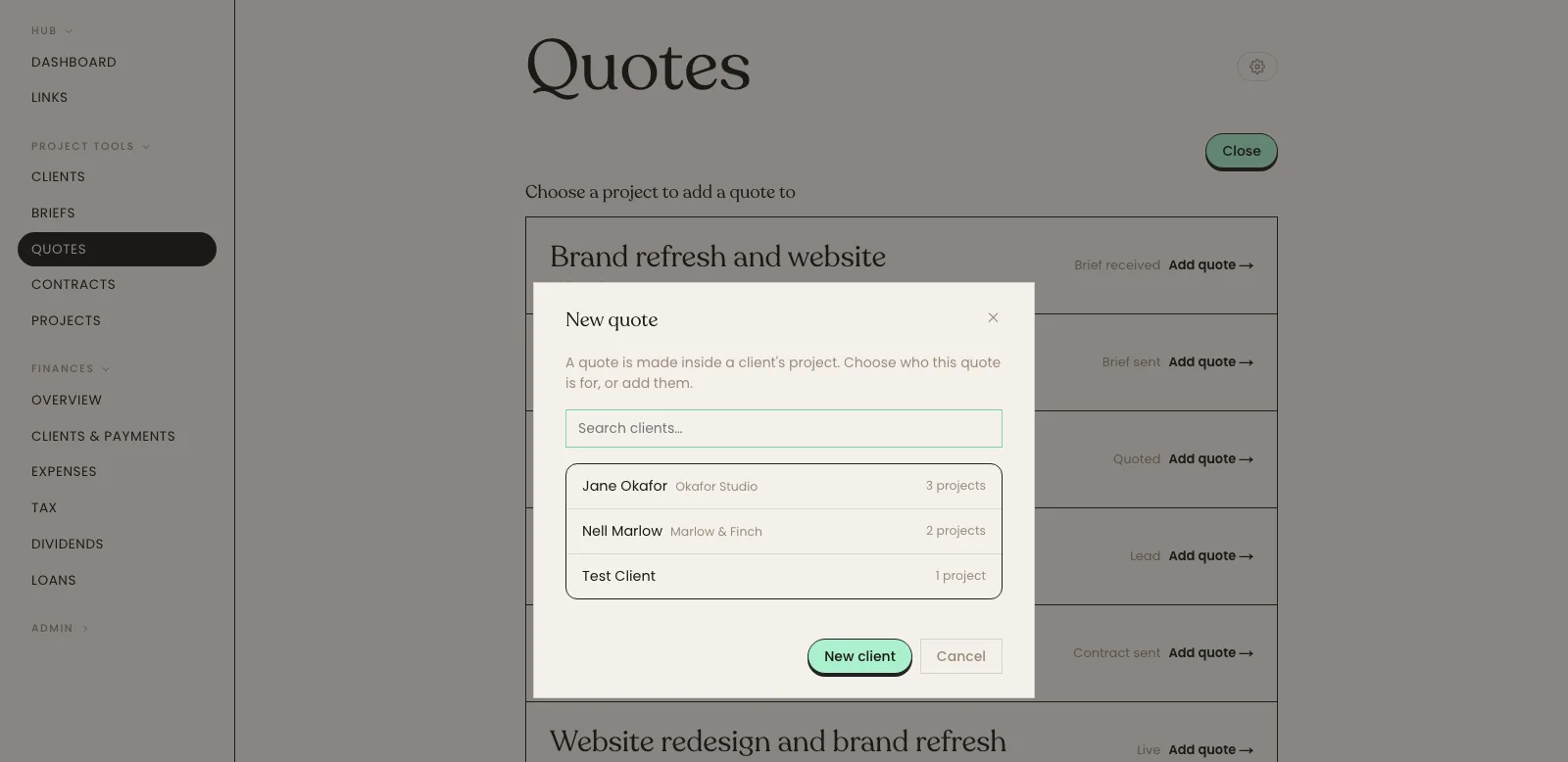
Every quote is made inside a client's project, so a new quote starts by choosing which. If the project, or the client, isn't there yet, you can add them without leaving the page.

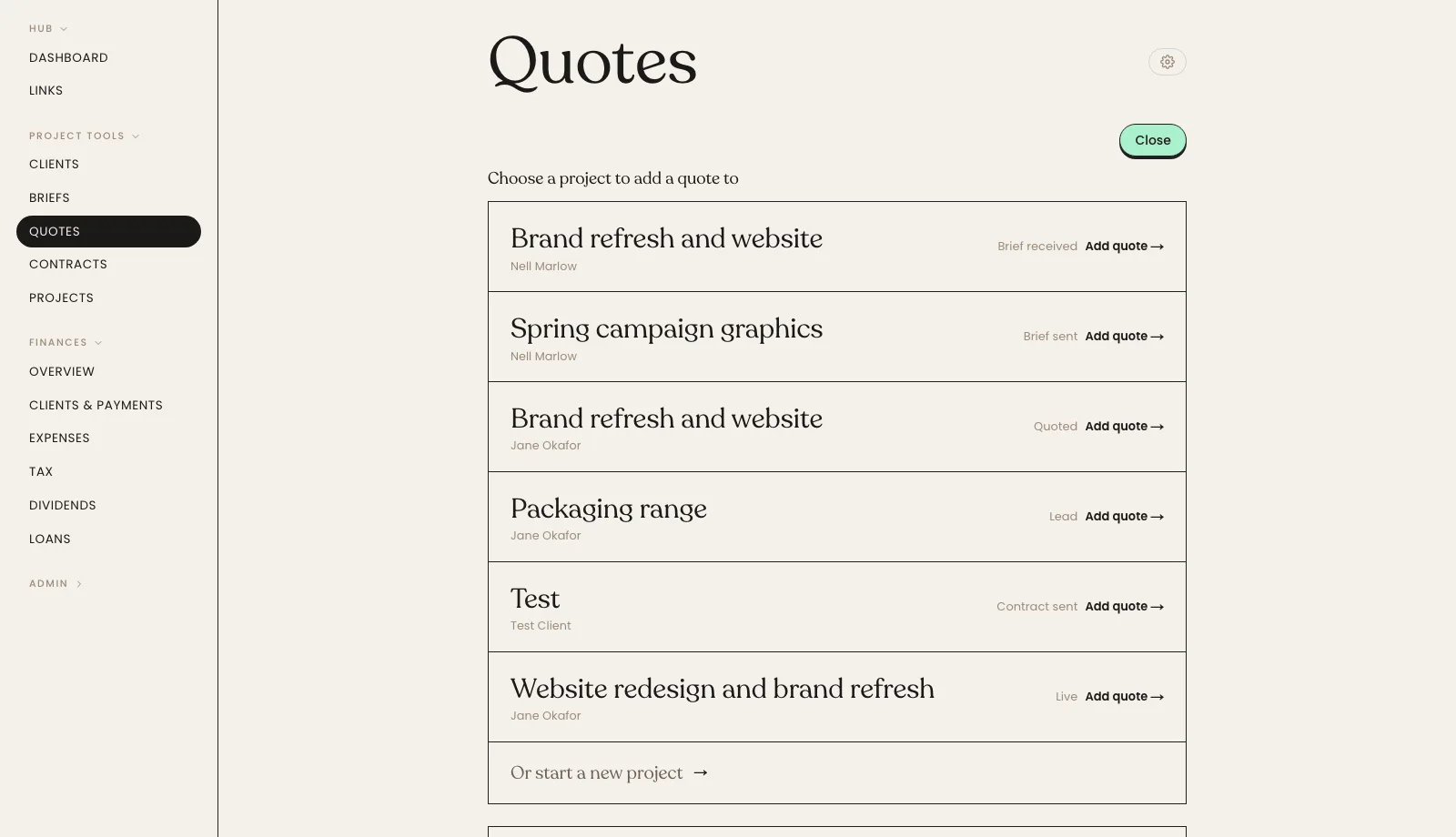
Open Project Tools → Quotes from the sidebar.
Click New quote. A list of your projects opens above the quotes, each with its client and stage. With no quotes yet, the list is the page.
Click the project the quote is for. The quote is created on it and opens in the builder as a draft, ready for you to price.
For a client or project that isn't listed, click Or start a new project: search for the client or click New client to add them, then pick or create their project.
Tip: Quotes are numbered for you. Each one gets a reference unique to your studio, so you can quote it back to a client later.
How to price a quote
The builder is your price list turned into a form. Pick a package where you sell one, or set a quantity against the per-unit items, and the totals keep up as you type.


Open the quote from the Quotes list.
In a section that sells packages, click the package you are quoting. Leave them all unselected to skip that section.
For per-unit work, set the quantity against each item. The line total appears beside it.
Watch the Quote Summary on the right: it totals each section, then shows the subtotal, VAT, grand total and the deposit split.
Click Save. The quote stays a draft until you send it.
Tip: The summary shows your internal margin next to the client price, so you can see what a discount really costs before you offer it.
How to add a one-off item to a quote
Sometimes a job needs a line that is not in your price list. You can add one to a single quote without changing your catalogue.

Open the quote and find the section the item belongs in.
Add a new line and give it a name the client will understand.
Type the price, and the quantity if it is charged per unit.
Click Save. The line is part of this quote only; your price list is untouched.
To add it permanently instead, put it in your price list first (see Prices) and it will appear on every new quote.
How to send a quote to a client
Sending turns the quote into a link the client can open, read and accept. You can attach a proposal so the pitch and the price arrive together.

Open the quote and check the totals are right.
Click Preview to see it exactly as the client will.
Click Send to client.
Check the To address, and add anyone else who should receive it in Also send to.
Attach a proposal PDF if you have one, then send. The quote's status changes to Sent.
Tip: Once a quote has been sent, Copy link gives you the client's own link again, so you can paste it into a message rather than resending the email.
How to track whether a quote was accepted
A quote moves from Draft to Sent when you send it, and the client can accept it on their own link. You can also set the outcome yourself after a conversation.
Open Project Tools → Quotes. Each row shows its status and total.
Use the Filter at the top to show only drafts, sent quotes, or accepted ones.
Open a quote to change its status by hand: Mark accepted or Mark declined.
If you set one by mistake, Back to sent returns it.
An accepted quote stays on the client's project, so the brief, the contract and the work all sit together.
How to download a quote as a PDF
Every quote can be exported as a PDF on your studio's letterhead, for a client who wants something to file or forward.
Open the quote you want to export.
Make sure it has prices on it. The PDF and preview are unavailable while the total is zero.
Click Download PDF.
The file downloads with your studio's details and the quote's reference on it.